
Karakuri Popcorn Wagon (VRchat Avatar Gimmick)
Produktbeschreibung
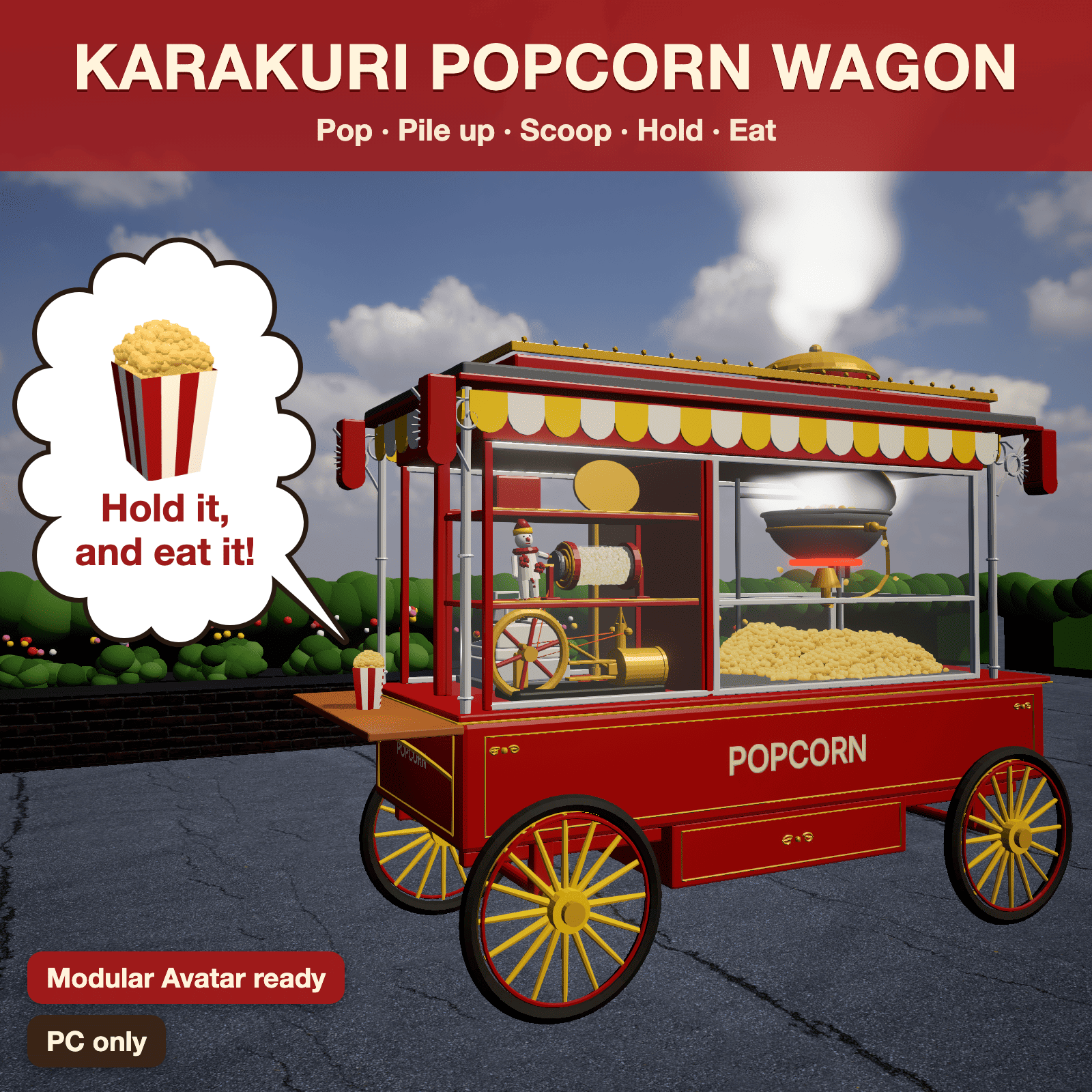
Bring out the popcorn wagon and make some popcorn!
You can bring out the popcorn wagon from the Expression menu.
Since it’s an avatar gimmick, you can use it in any world.
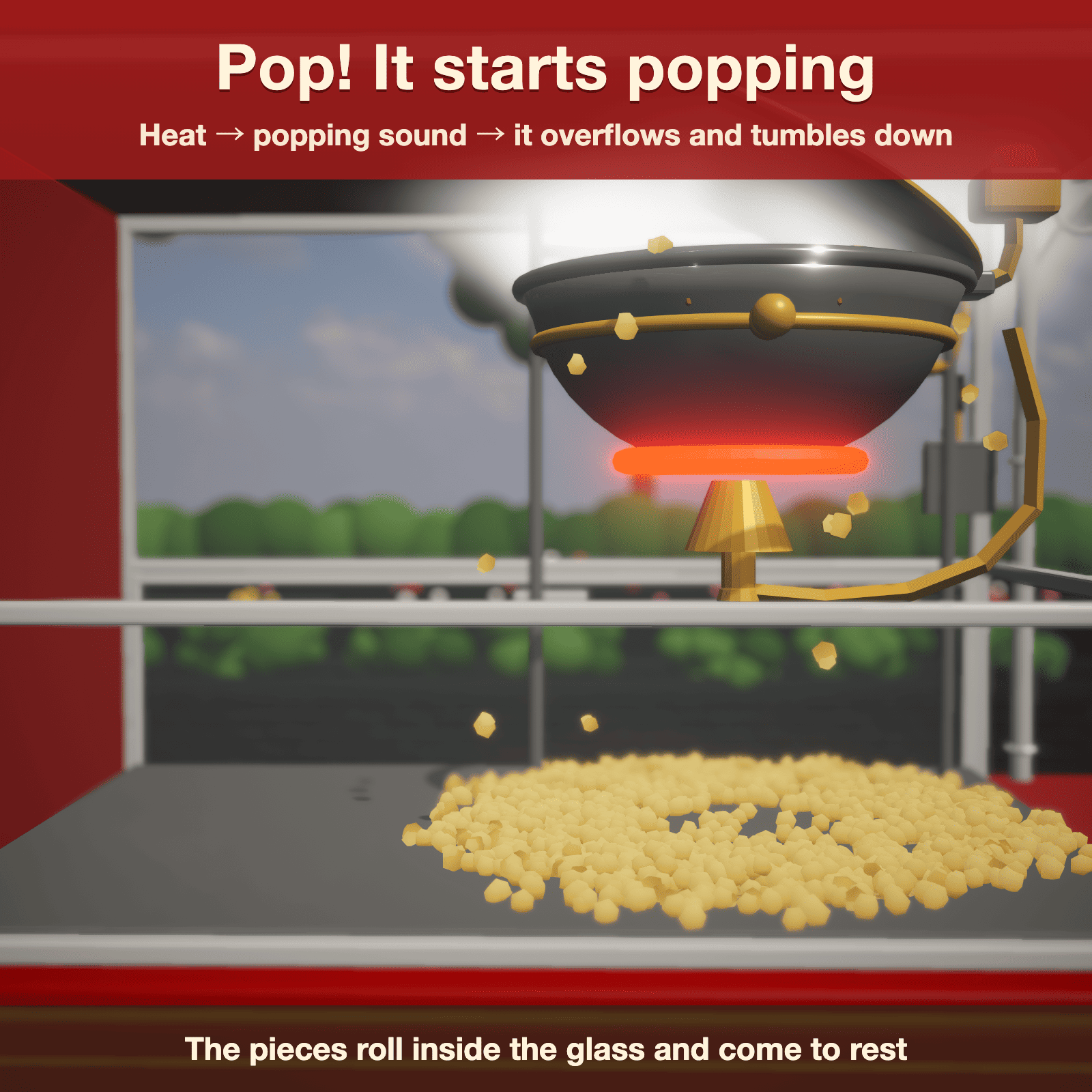
When you press the Start button, the kettle heats up, and with a crackling sound, the popcorn pops, spills out, and gradually piles up in the glass.
You can pour the finished popcorn into a box, take it with you, and eat it.
What it does
- Pop — heat → popping sound → popcorn overflows and rolls down the glass
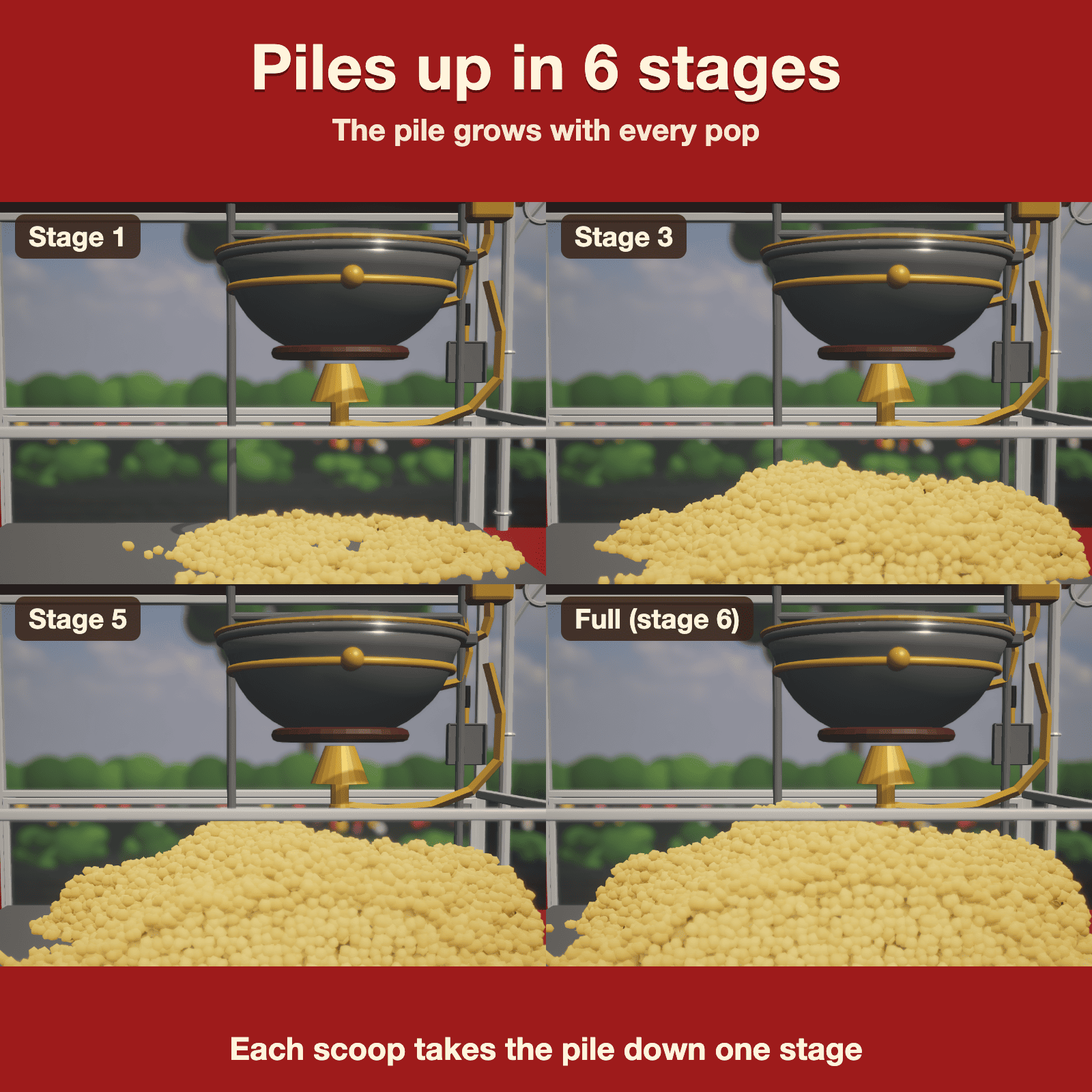
- Piles up in 6 stages — the pile grows with every pop; each scoop takes it down one stage
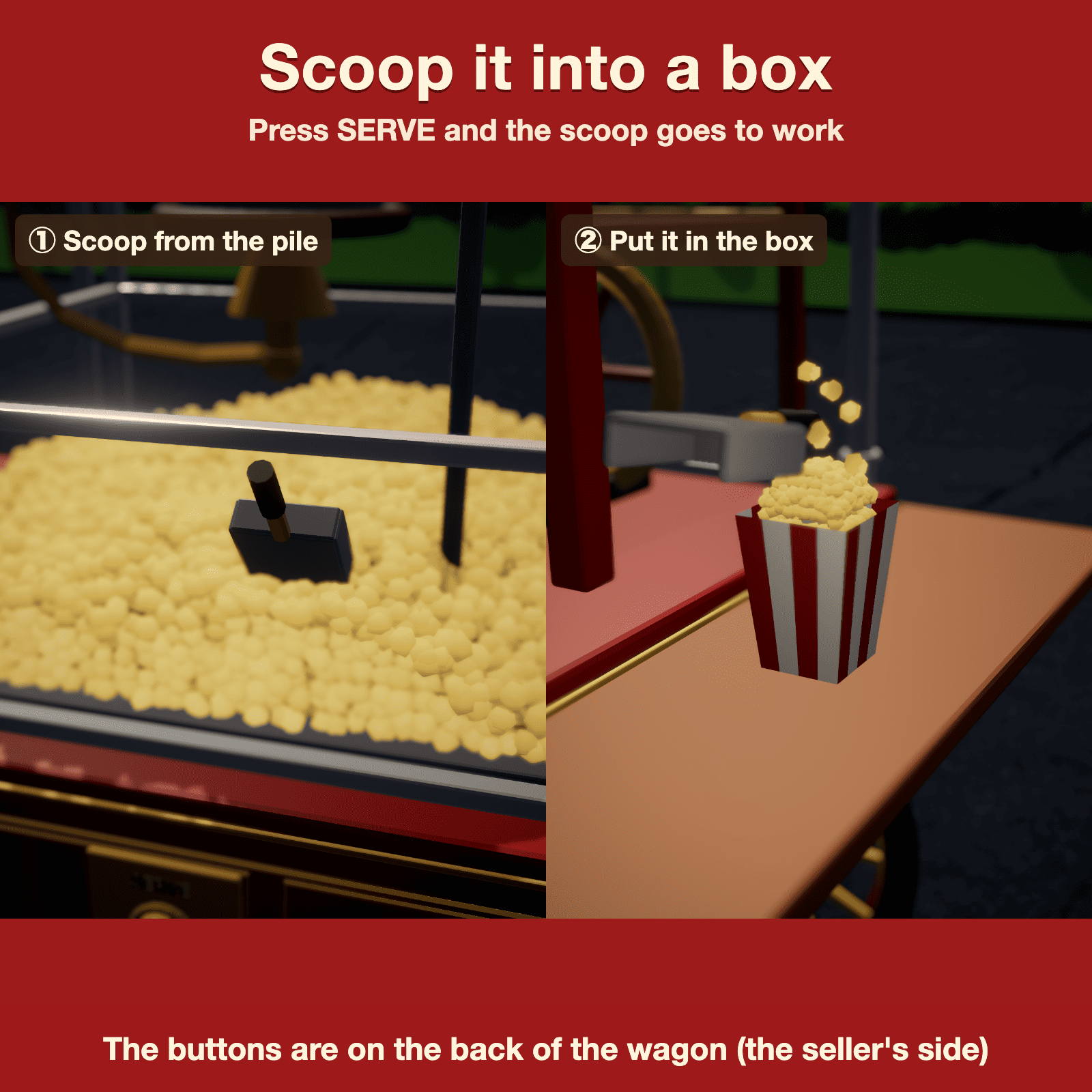
- Scoop — the scoop takes popcorn from the pile and fills the box on the table
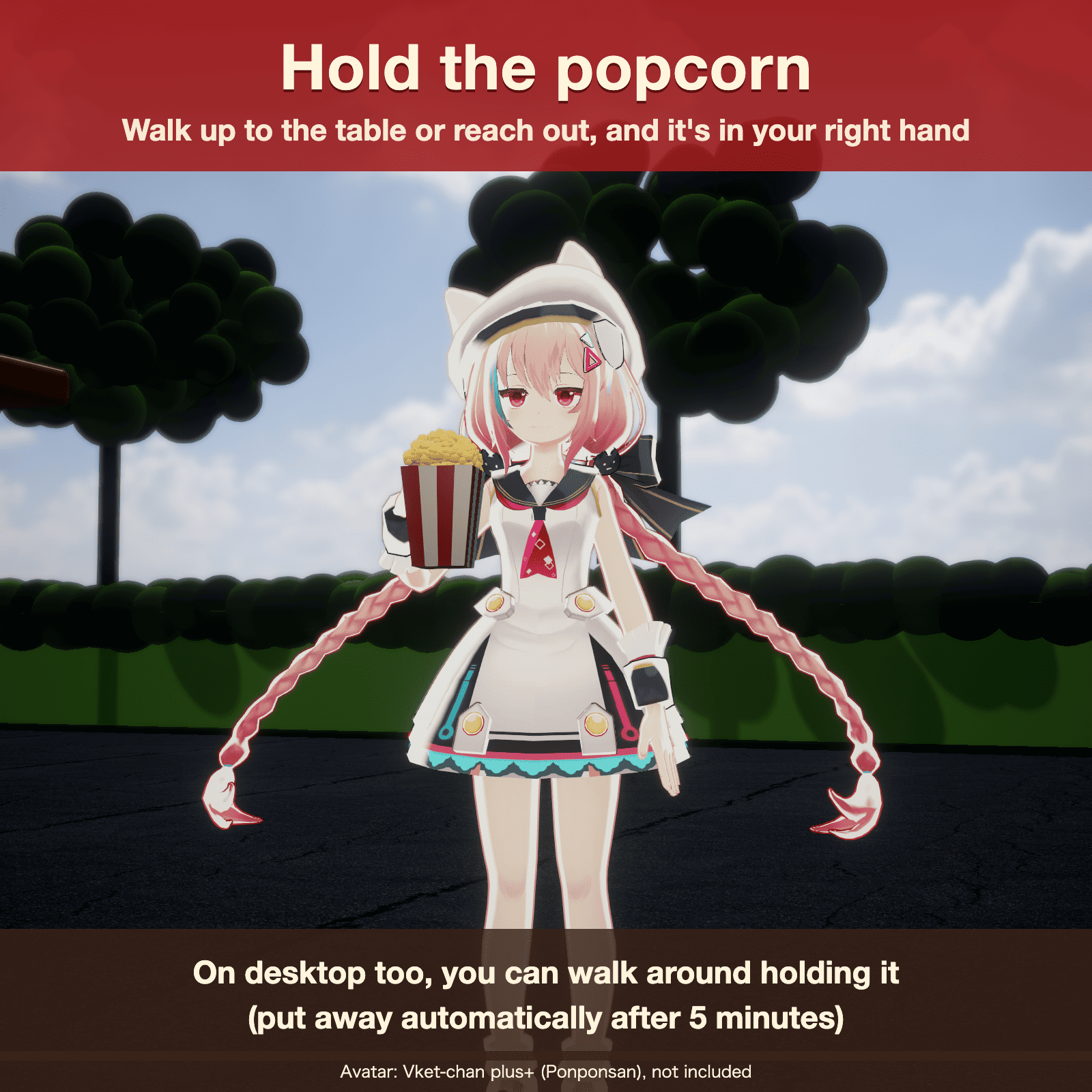
- Hold the popcorn — walk up to the table or reach out, and the box is in your right hand (also from the menu; it is put away automatically after 5 minutes)
- Walk around holding it on desktop — the holding arm is layered on your walk, so you can keep moving
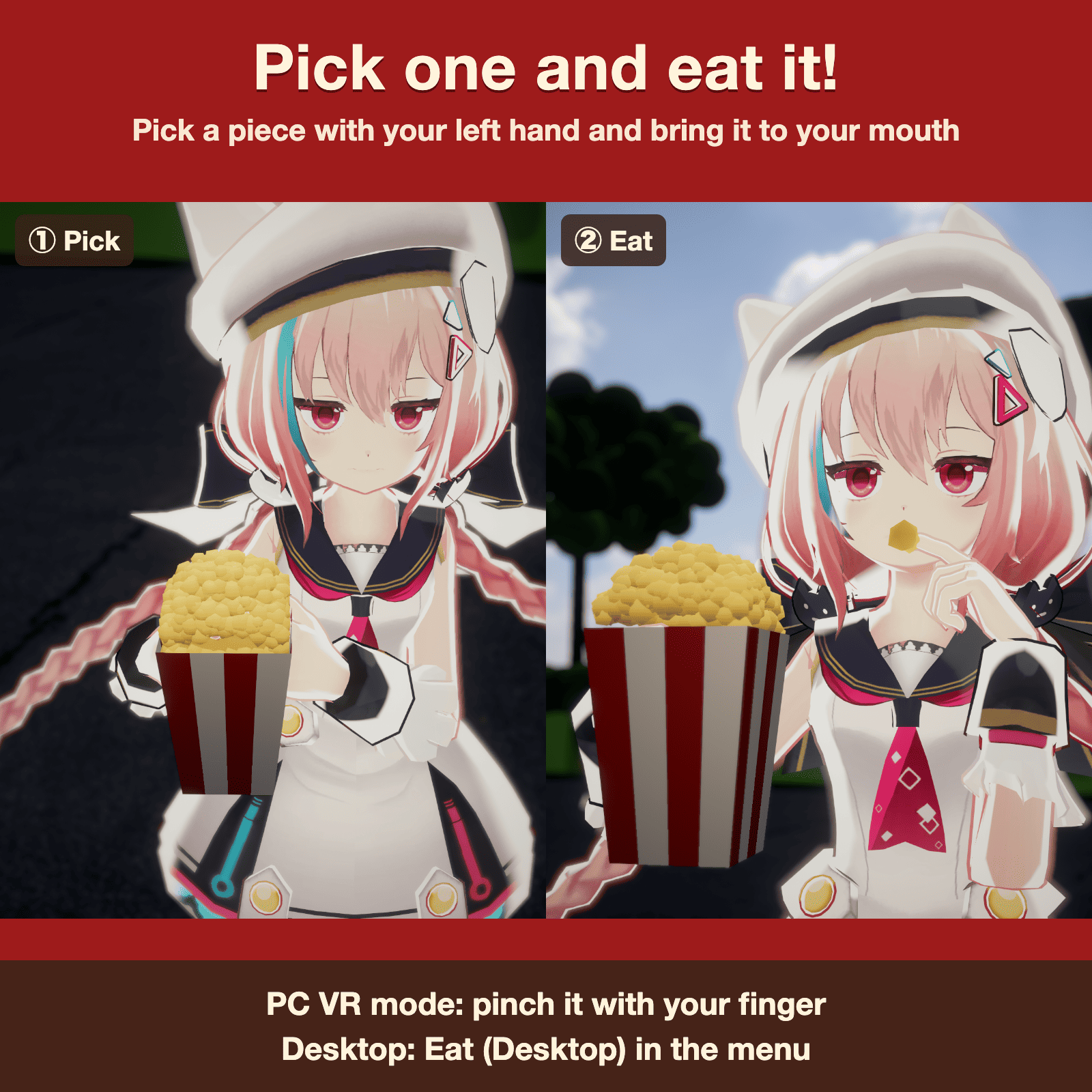
- Eat on desktop — "Eat (Desktop)" in the menu: your left hand picks a piece and brings it to your mouth
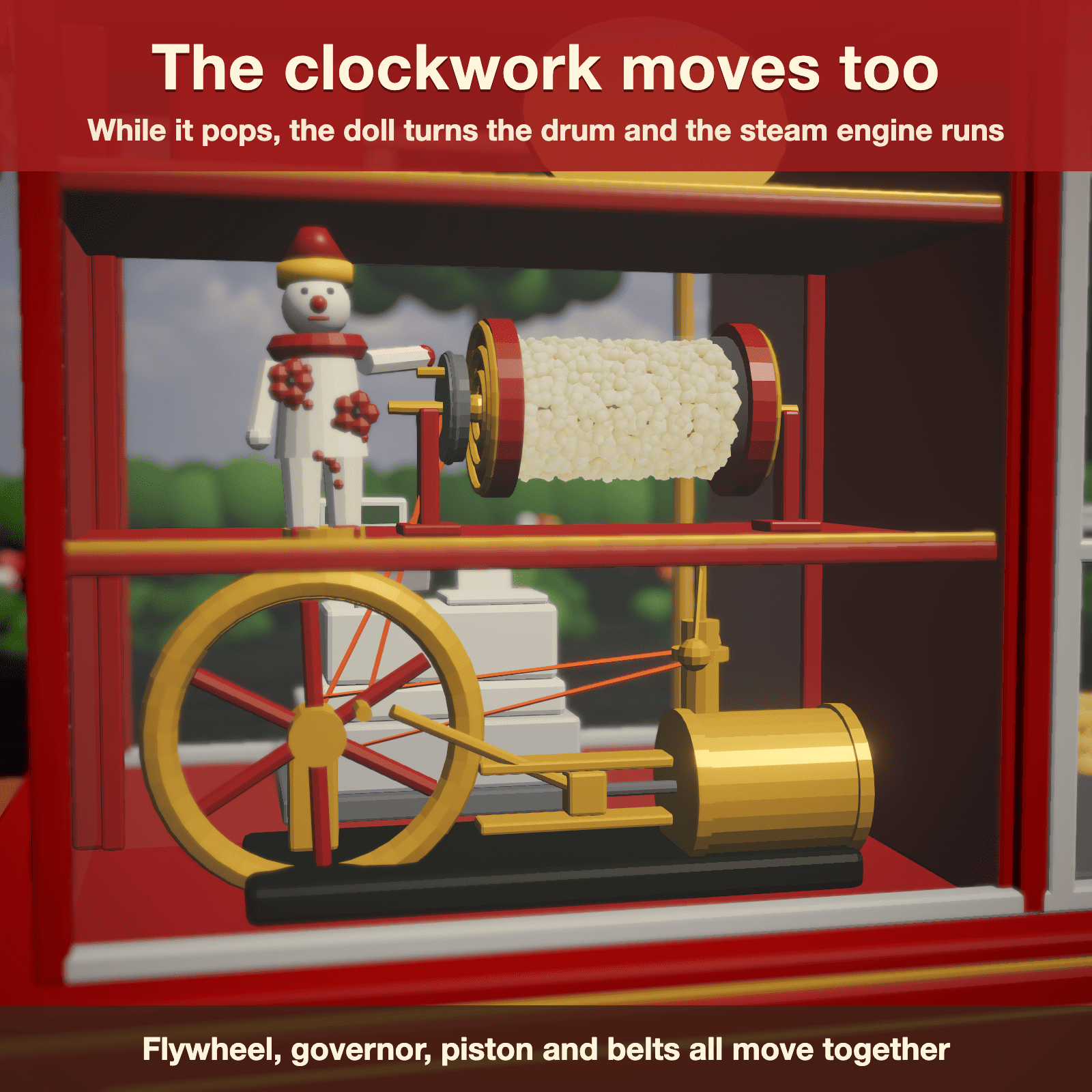
- Clockwork — while it pops, the doll turns the drum and the flywheel, governor and steam engine move
- Stays in place — the wagon stays where you brought it out, even when you walk away
- Synced — people around you see the same thing and can operate it too
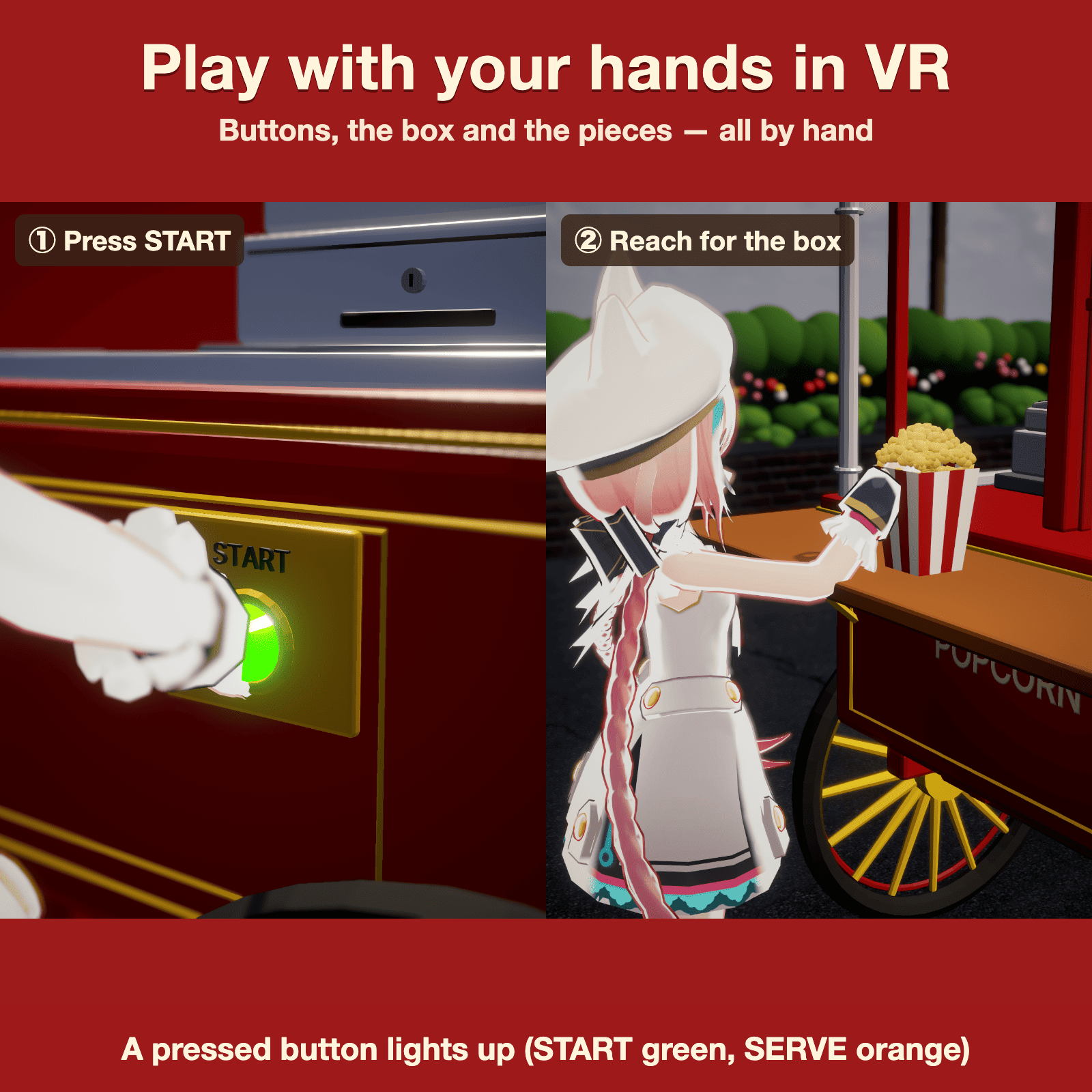
In VR mode, play with your hands
- Press the buttons — the START and SERVE buttons on the back of the wagon (the seller's side) react to your hand and light up (START green, SERVE orange)
- Take the box — reach for the box on the table and it moves to your right hand
- Pick and eat — put your left index finger into the box to pick a piece, then bring it to your mouth
After bringing the wagon out from the menu, everything from popping to eating can be done by hand.
Easy setup (Modular Avatar)
- Add Modular Avatar to your project with VCC (or ALCOM)
- Import the unitypackage
- Drag PopcornWagon_MA onto your avatar (directly under it)
- Select the avatar and run Tools → PopcornWagon → Fit Box to Selected Avatar (fits the box and the arm motions to your avatar)
- Upload
Your avatar's own FX layer, menu and parameters are not changed. Full steps are in the included README (English and Japanese).
Specifications
- Platform: VRChat PC only (Quest / Android not supported)
- Requires: Unity 2022.3 / VRChat SDK3 Avatars / Modular Avatar 1.18 or later
- Tested with: Unity 2022.3.22f1, VRChat SDK 3.10.6, Modular Avatar 1.18.7
- Avatar: humanoid
- Polygons: about 209,000 (the whole wagon)
- Performance rank: Very Poor
- Parameters: 19 synced bits
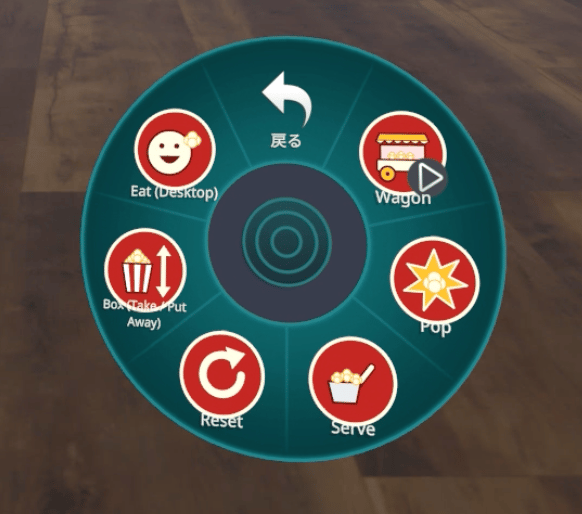
- Menu: one "Popcorn" submenu with 6 items (Wagon / Pop / Serve / Reset / Box / Eat (Desktop))
Notes
- Because of the polygon count, your avatar becomes Very Poor. People who hide Very Poor avatars will not see it.
- The wagon is life-size (about 2.8 m long, 2.4 m tall).
- The box in the hand may be slightly off on some body shapes (a fitting menu is included).
- The popping sound is heard only by people whose settings allow avatar audio.
- When uploading, the Builder may show a "Very Poor" warning (always shown with this gimmick). It does not stop the upload.
- It may also show "This avatar uses Unity constraints...". This is about Unity constraints in your avatar itself (this gimmick uses none). "Auto Fix" replaces them with VRChat constraints; you can also upload without it.
- The avatar in the pictures and video is not included. Pictures and video are rendered in Unity.
Included files
- PopcornWagon_MA_v1.0.unitypackage
- README_EN.txt / README.txt (setup and FAQ, English and Japanese)
- 利用規約.txt (Terms of Use, Japanese and English)
Terms of use (summary)
- Use it on your own VRChat avatars (any number of them).
- Modifying it for your own use is fine.
- Photos, videos and streams are free to use, including monetized ones and events. No credit needed.
- Redistribution, resale and sharing (including modified versions and avatar data containing it) are not allowed.
- Publishing it on a public avatar is not allowed.
- See the included "利用規約.txt" for the full terms (the Japanese version prevails).
Credits
- Avatar in the pictures: Vket-chan plus+ (Ponponsan), not included
- Sound effect: original, made by the author (no stock material)
- BGM of the promo video: "Lovely Flower" by Music Atelier Amacha (甘茶の音楽工房)