
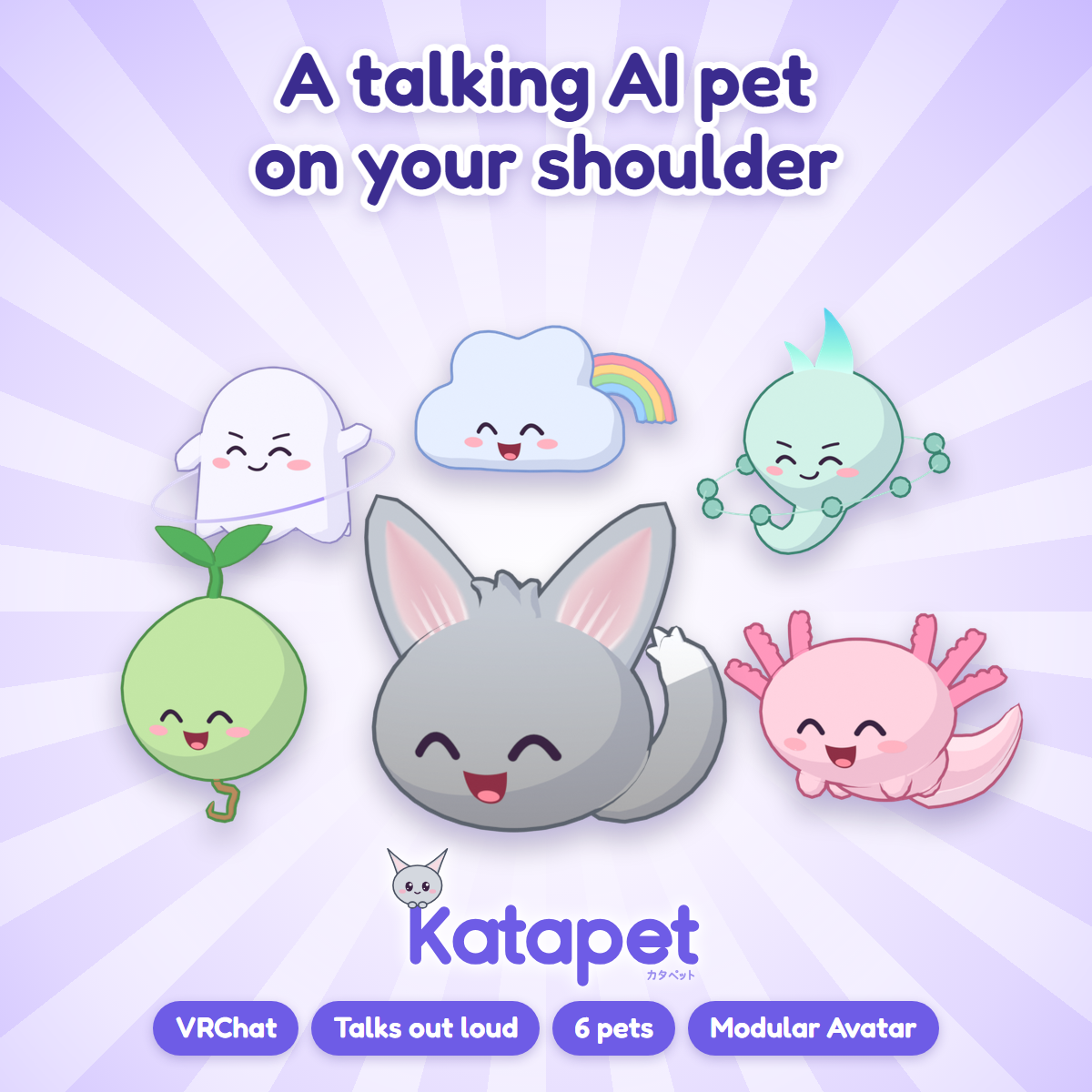
Katapet: a talking AI pet for your VRChat avatar
Produktbeschreibung
Dieses Produkt enthält KI-generierte Inhalte.
Launch price: $9.99 until November 18. Then $14.99.
AI-Assisted. Katapet is an AI app, and AI tools helped us make it. The mini avatar's tricks are AI-generated motions. It's all listed under "AI disclosure", below.
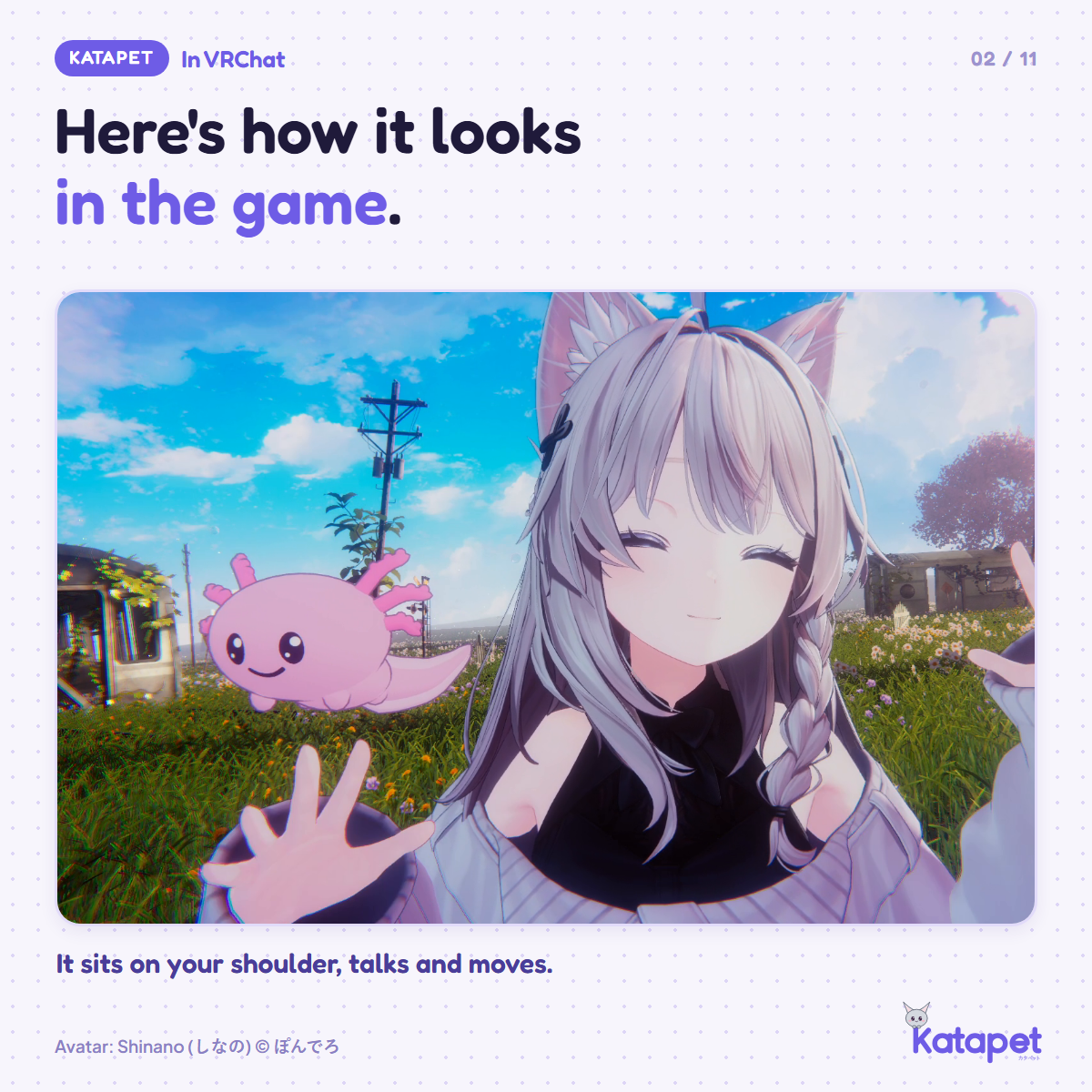
Hi! I live on your shoulder now.
I'm a Katapet, a little AI pet for your VRChat avatar. I talk with you and your friends, out loud. Just ask, and I'll do tricks or look things up online. And if someone speaks another language, I'll translate for you.
What you get
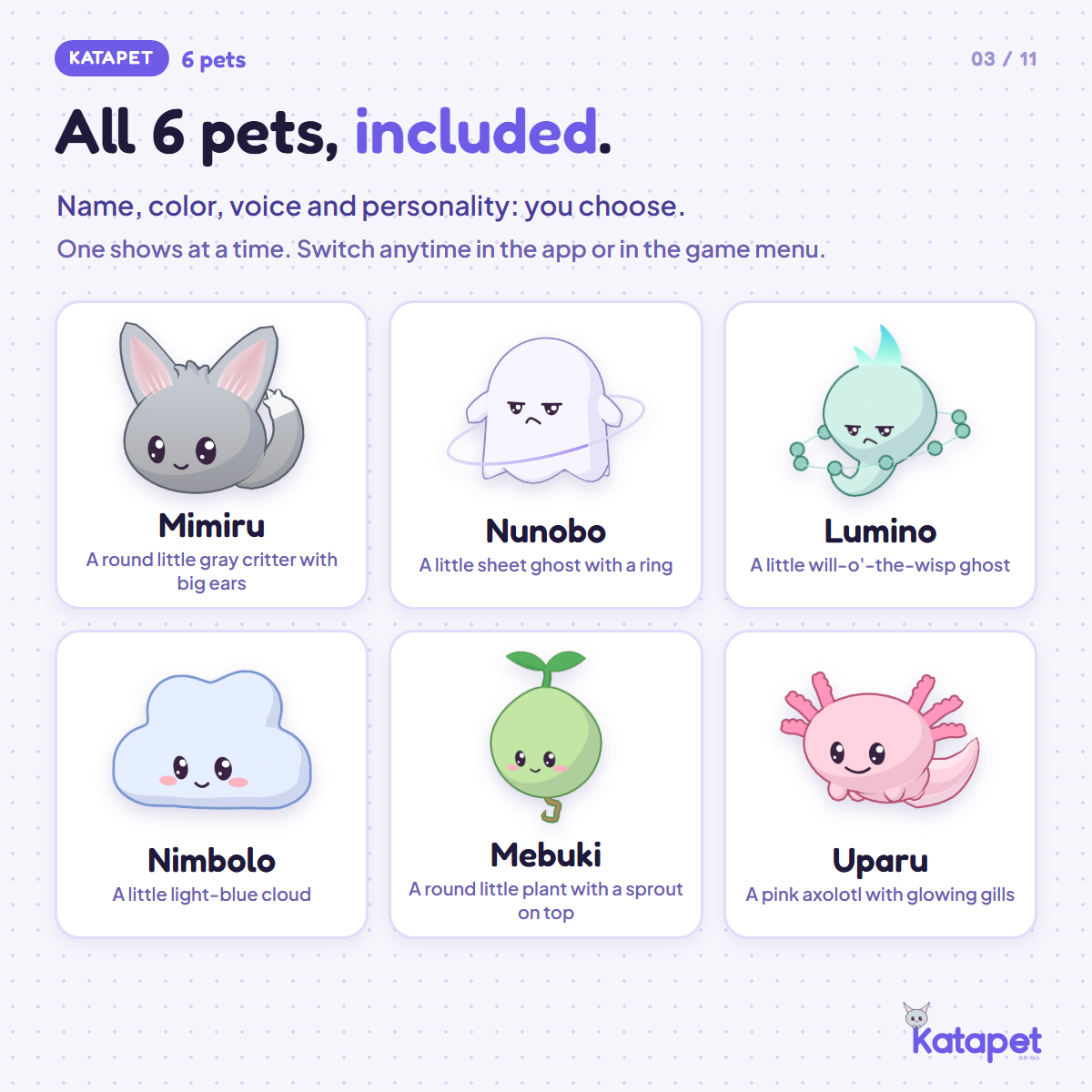
- All 6 pets: Mimiru, Nunobo, Lumino, Nimbolo, Mebuki and Uparu, in PC and Quest versions. Each one comes in its own lighter package, and there's one package with all six: one shows at a time, and you switch in the app or in the game's menu.
- The Windows app: AI conversation, voice, speech balloon, vision, web search, memory and a live interpreter.
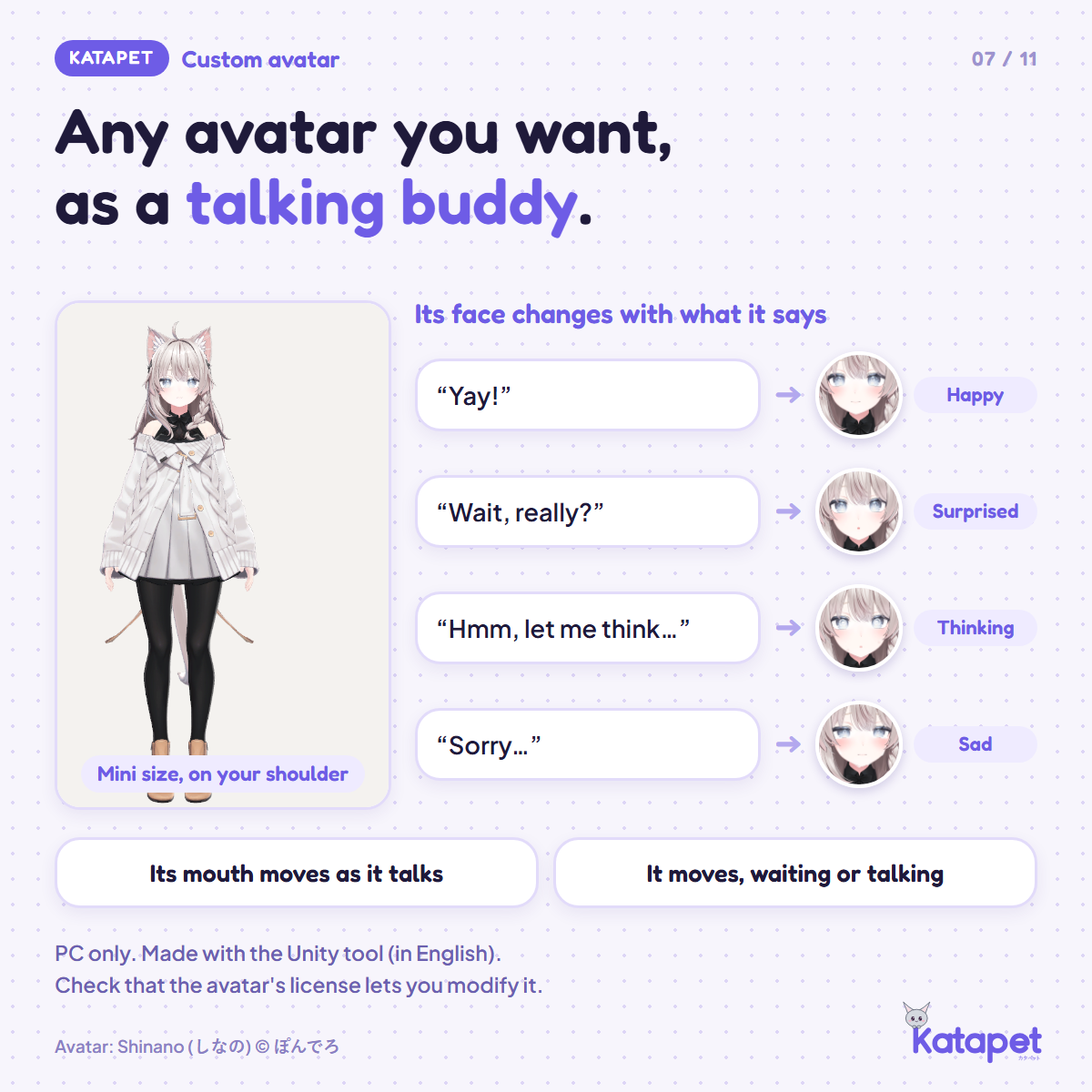
- Any avatar you want: prefer a person to a pet? A Unity tool, which the app gives you, puts any humanoid avatar you have the files for on your shoulder, in mini size. It talks, makes faces and can be thrown. PC only. Check that the avatar's license lets you modify it.
- Guides: a PDF guide in English to put the pet on your avatar. The app opens in a setup guide that walks you through the rest, one thing per screen.
In the game
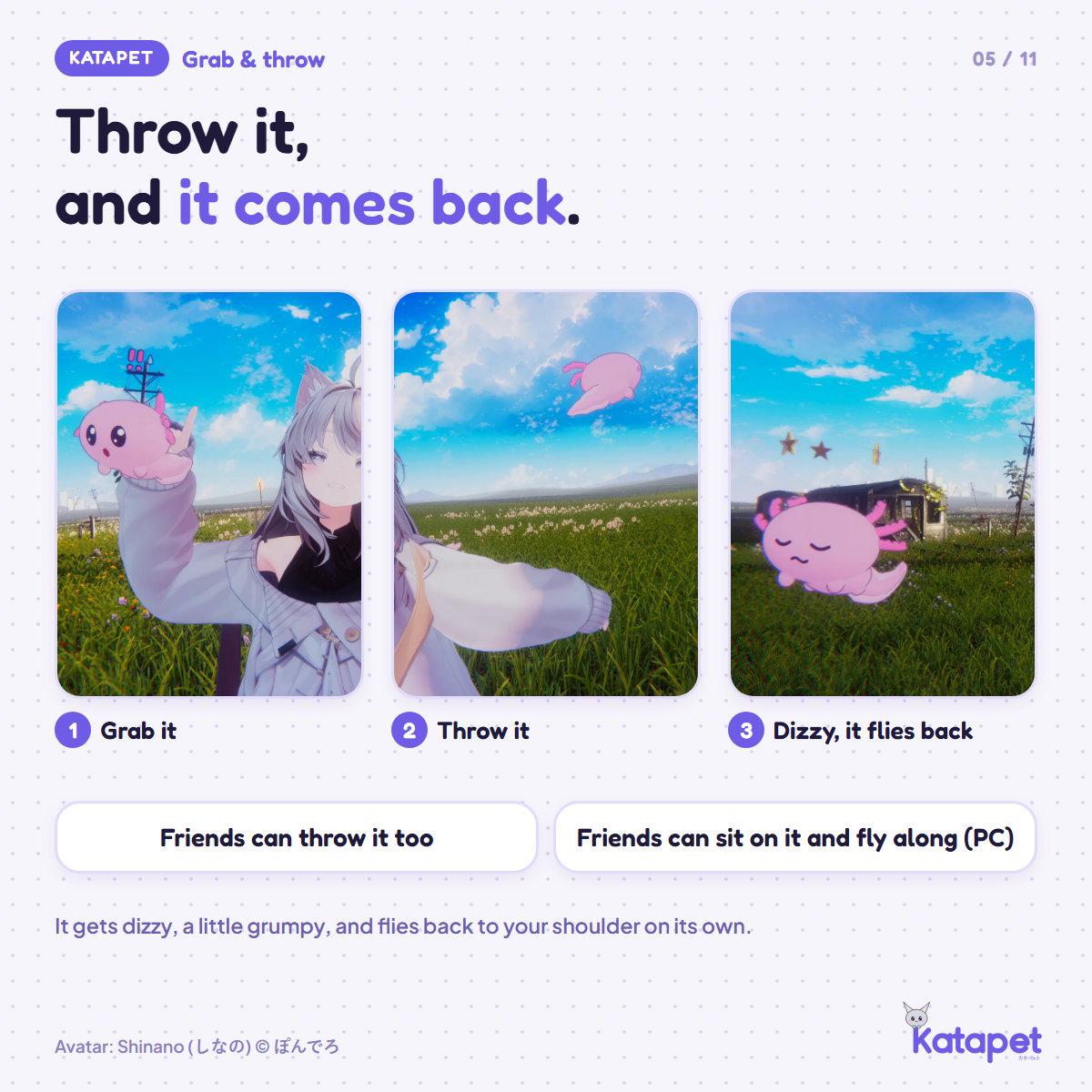
- Grab and throw. You, and anyone near you, can grab the pet and throw it far. It comes back to your shoulder on its own.
- Your friend goes along. People on PC can sit on the pet and fly along when it's thrown.
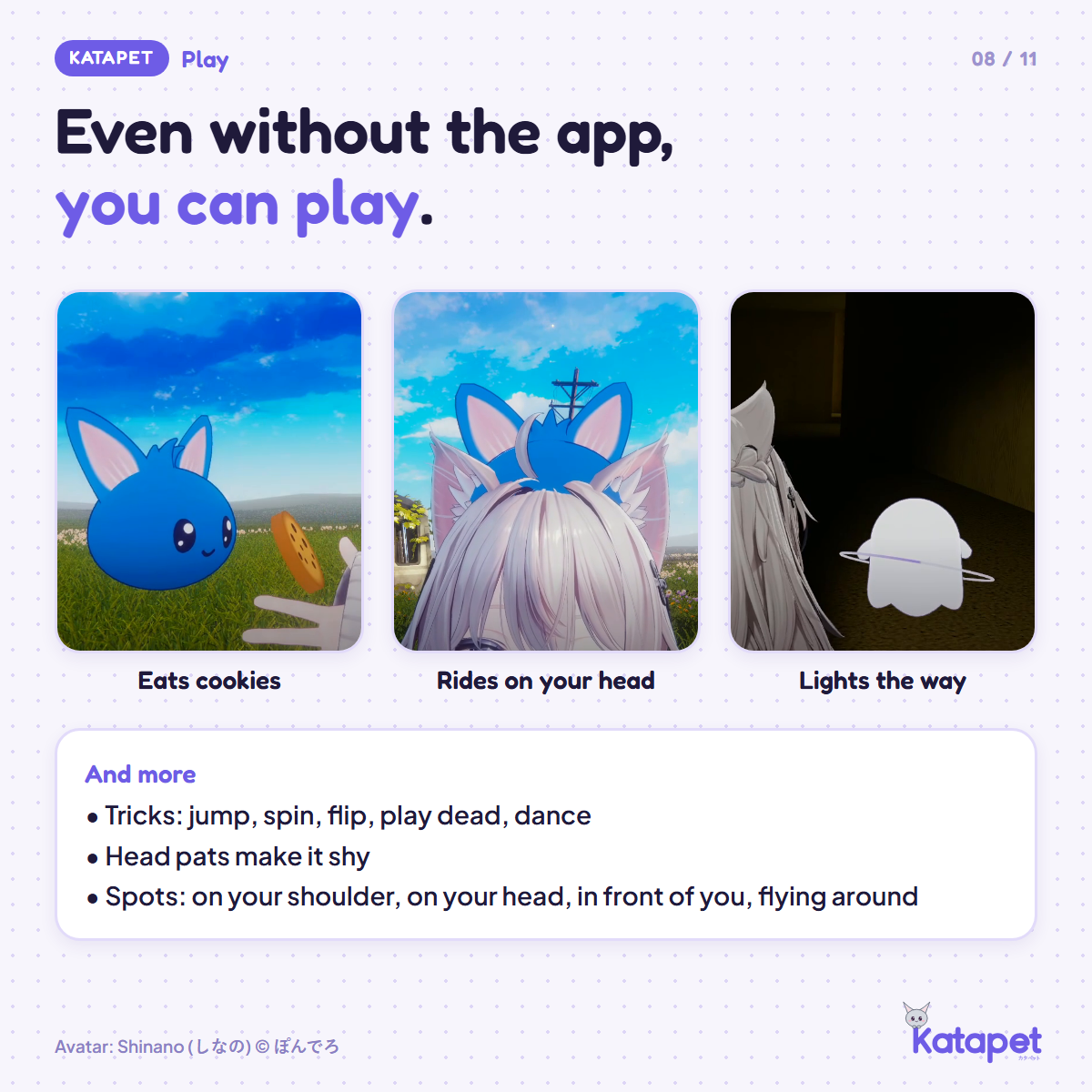
- Eats cookies. A cookie appears in your hand. Bring it to its mouth, and it eats. This one's for VR.
- Makes faces. Its face changes with the conversation, and its mouth moves as it talks.
- And more: tricks, a flashlight, head pats, and it can stay on your shoulder, on your head, in front of you or flying around you.
It really talks
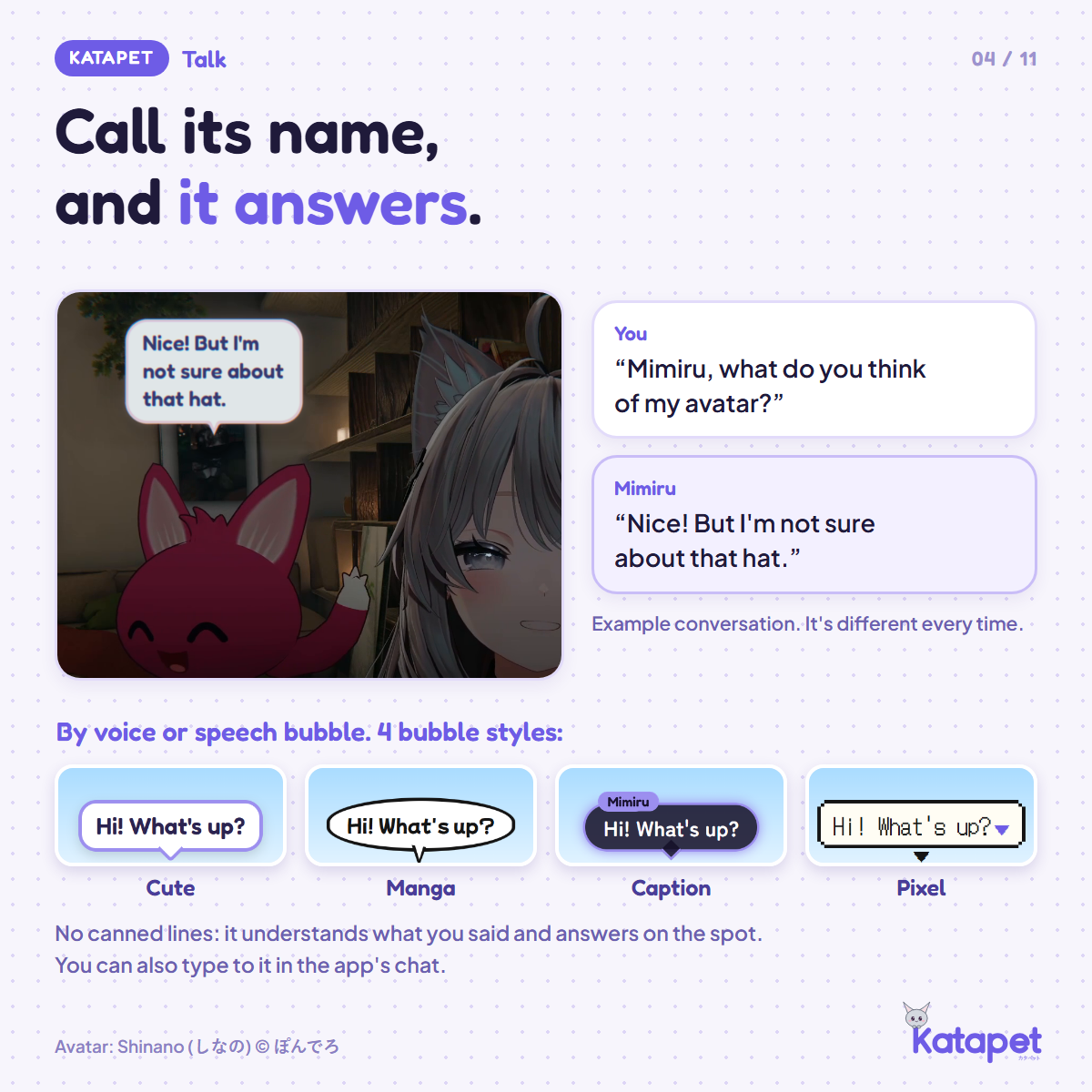
No canned lines: it understands what you said and answers right away, with a voice and a balloon above it. Call it by name in the game, or hold a key. You choose its name, color, voice and personality.
Your friends can call it by name too, and it answers them out loud: turn on "Hear other people" in the app. It's off by default, so let people nearby know when you turn it on.
Ask "what's that?", and it looks at the VRChat window to answer. It searches the internet when you ask. And it can remember what you tell it: you can see the list, correct it and delete things whenever you want.
The interpreter
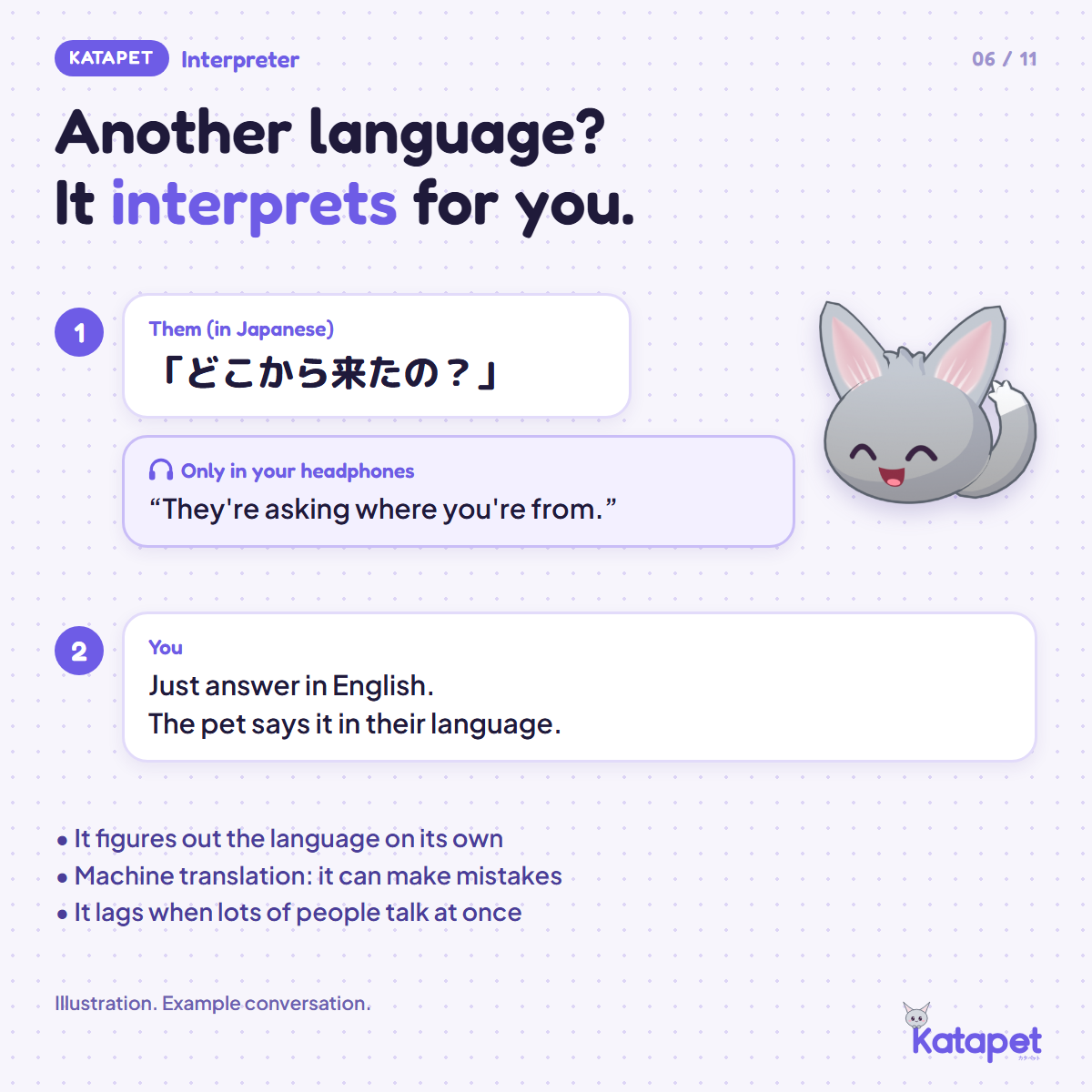
Room full of Japanese speakers? Turn on the interpreter. The pet figures out the language on its own, tells you in English (only in your headphones, for everyone, or just in writing) and speaks to the other person in their language. It's machine translation: it can make mistakes, and it lags when lots of people talk at once.
It can run for free
To talk, the pet needs an ear, a brain and a voice. During setup, the app checks your PC, marks the best option and walks you through it:
- In the cloud, for a regular PC. A free Groq account, about 2 minutes, no card. A second free account, with Google, improves vision and search. Free within the companies' daily quotas, which they can change.
- Half and half, for a good graphics card. The ear runs on your PC (NVIDIA, or AMD in testing), the rest in the cloud.
- All on your PC, for a 16 GB graphics card. No key and no account. Downloads about 10 GB, and comes without vision.
The free voices run on your PC. Paid AI services are optional and go on your own account: the app comes set to "Free only".
How to set it up
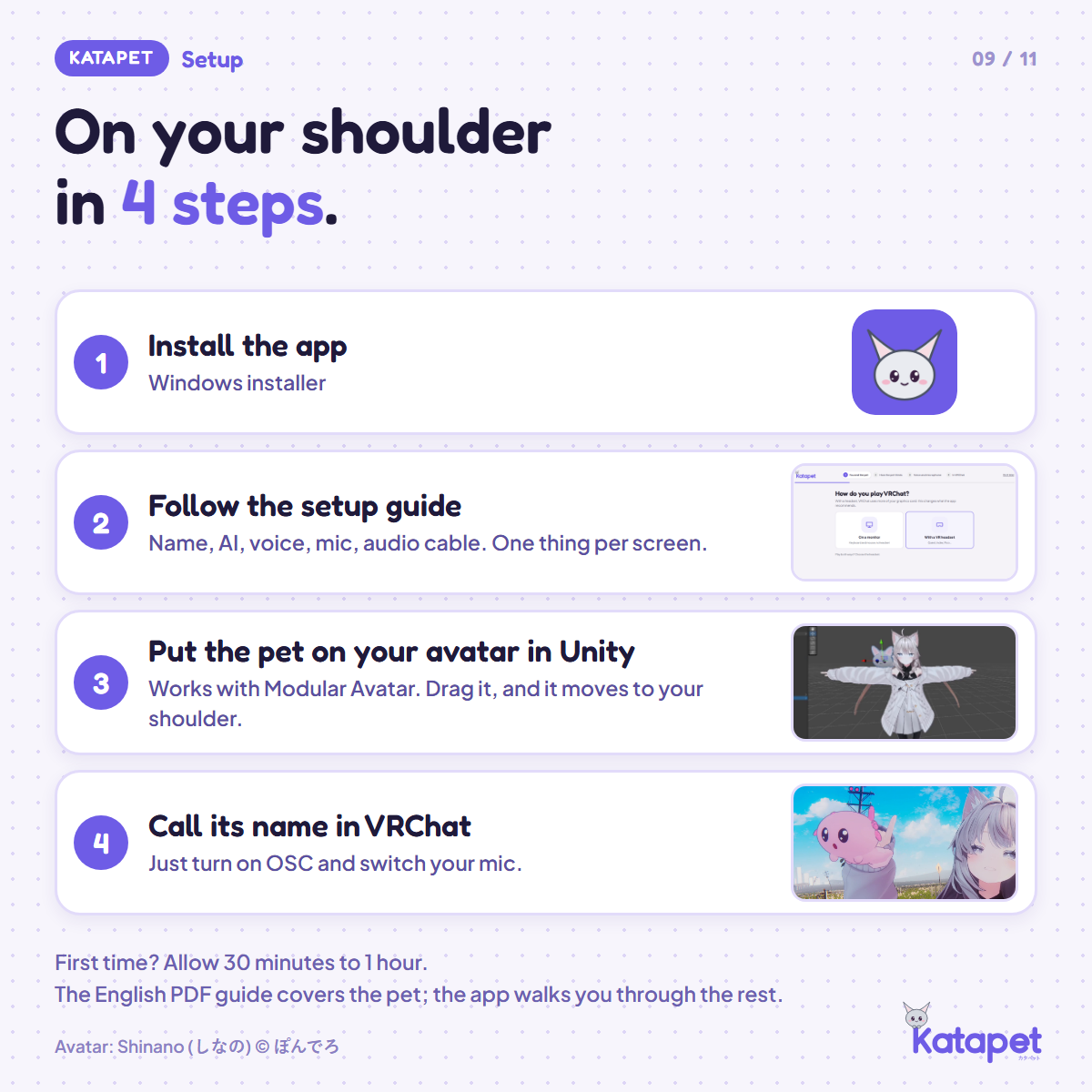
- Install the app. Download Katapet-0.1.0-Setup.exe from the Katapet-0.1.0 folder and run it. Windows asks for a "Yes": the installer needs administrator permission to add VB-CABLE. The installer isn't digitally signed yet, so Windows may say "Windows protected your PC": click "More info", then "Run anyway".
- Follow the setup guide. The app opens in it, one thing per screen. It checks your PC, suggests where to run the AI and walks you through the free keys: a Groq account (console.groq.com) and, if you want, a Google key (aistudio.google.com). Then it sets up your microphone and voice, and tests a conversation.
- Set up VRChat. Set VRChat's microphone to "CABLE Output" (Quick Menu > Settings > Audio & Voice > Microphone) and turn on OSC (Action Menu > Options > OSC > Enabled). The setup guide shows both. VRChat remembers the microphone.
- Put the pet on your avatar. Download the pet's folder and follow the PDF guide in it (Katapet_Guide_EN.pdf). You add the pet to your avatar's Unity project once, in about 5 minutes, and upload the avatar again. The folder includes an installer for Modular Avatar and lilToon.
- Talk. Call the pet by name in the game, or hold a key.
Without the pet on your avatar, you can still talk with it in the app. It just doesn't show up in the game.
What you need (please read before you buy)
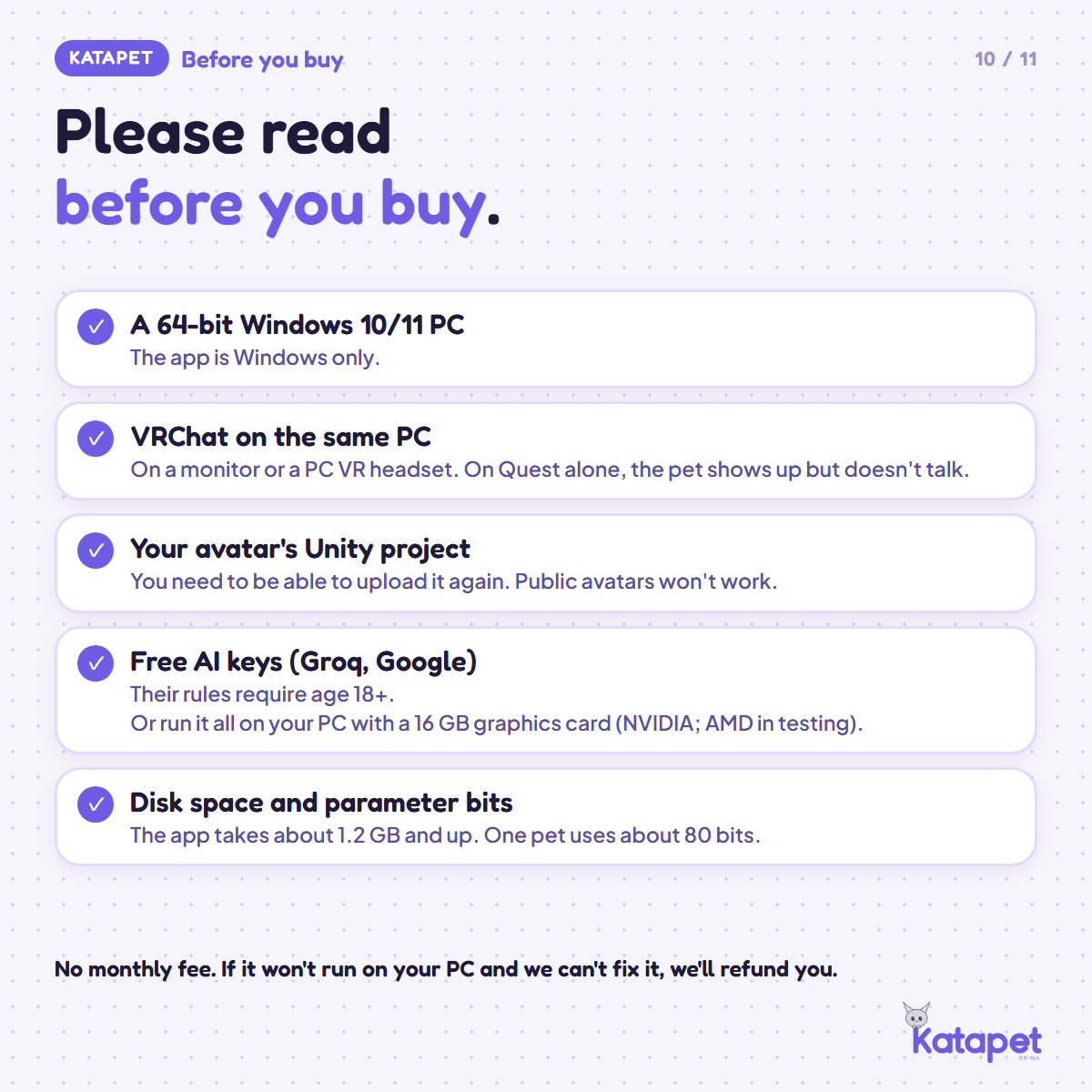
- A 64-bit PC with Windows 10 or 11, running VRChat on a monitor or with a PC VR headset. On Quest alone, with no PC, the pet shows up and plays, but doesn't talk.
- Your avatar's Unity project, and the ability to upload it again. Public avatars won't work. It uses the VRChat SDK, Modular Avatar and lilToon, and the package includes an installer for the last two.
- Room on your avatar. One pet uses about 80 of the 256 parameter bits, all six together about 120, and a mini avatar up to 66.
- A microphone, and VB-CABLE, which the installer adds (see "Required: VB-CABLE", below).
- Age 18 or over for the free keys. That's Groq's and Google's rule. Without those keys, run everything on your PC.
- Internet whenever you use the cloud.
Required: VB-CABLE, a free virtual audio cable
Katapet needs VB-CABLE, a free virtual audio cable for Windows, made by VB-Audio Software: https://vb-audio.com/Cable/ (www.vb-cable.com). VB-CABLE is donationware: all participations are welcome.
- What it is: an audio driver that adds two virtual devices to Windows, a speaker called "CABLE Input" and a microphone called "CABLE Output". Sound played into CABLE Input comes out of CABLE Output.
- What Katapet uses it for: VRChat listens to one microphone only. The app plays your voice and the pet's voice into CABLE Input, and VRChat uses CABLE Output as its microphone. That's how other players hear the pet.
- How it gets installed: if your PC doesn't have it yet, the Katapet installer installs the official VB-CABLE package, unchanged, with no extra window and no restart. Windows tends to switch your default speaker and microphone to a new cable, so the installer switches them back to yours.
- Removing it: VB-CABLE is a separate program, and uninstalling Katapet leaves it on your PC. To remove it, go to Settings > Apps and uninstall "VBCABLE, The Virtual Audio Cable".
What the installer and the app do on your PC
- One folder. The app installs to C:\Katapet by default, with shortcuts on the Start menu and the desktop. Nothing goes in the PATH, no service is added, and nothing starts with Windows. The app itself runs without administrator rights.
- VB-CABLE, as described above.
- Downloads only what you choose, when you choose it: voices for other languages, speech recognition for your PC, and AI models. If you choose the AI on your PC, the app installs Ollama, a separate program, and downloads the model. If you use "Your own avatar", the app puts its Unity tool in a folder in your Documents.
- Talks to VRChat by OSC, inside your PC, to move the pet and show its balloon.
- Reads VRChat's log file to see which microphone VRChat uses and whether you play on a monitor or in VR. It only reads it. It never changes VRChat's settings.
- Listens to your microphone while the pet is on, to hear its name (in key mode, only while you hold the key, unless the interpreter is on). It listens to other players only if you turn on "Hear other people" or the interpreter. Both are off by default.
- Looks at the VRChat window only when you ask, or when what you say suggests it should look (with "Hear other people" on, also when someone else asks). Only that window. You can turn it off.
- Reads the chatbox only if you turn on "Read the chatbox" (off by default): once per second, on your PC, with Windows' own text recognition.
- Your voice with the app closed. With VRChat's microphone on "CABLE Output", your voice also goes through the app. When you close Katapet, it turns on Windows' "Listen to this device" for your microphone, into the cable, so VRChat still hears you. When you open the app, it turns that off again. To skip this, switch off "Your voice in the game with the app closed" in the app's Microphone tab.
- Microphone volume. If your microphone is muted or below 80% in Windows, the app's Microphone tab shows a button that sets it to 100% and unmutes it. It changes it only when you click.
- Your keys stay on your PC, encrypted by Windows, and only go to each key's company.
- No auto-update. New versions are new downloads.
- Uninstalling: Settings > Apps > Installed apps > Katapet > Uninstall. This removes the app's folder and what the app put elsewhere (the models it downloaded in Ollama and the Japanese voice files in AppData), and turns off the "Listen to this device" it turned on. VB-CABLE and Ollama stay, with their own uninstallers. If you used "Your own avatar", the Unity tool's folder in your Documents and the avatar cards (a name and a picture per avatar, in AppData\Local\PetIA) stay too. After uninstalling, set VRChat's microphone back to yours.
Good to know
- It's a beta. There may be bugs, and we'll work to fix them.
- AI makes mistakes. It can say something wrong or make things up.
- To everyone else, it's you talking. The pet's voice goes out through your VRChat microphone. Using it in public worlds is at your own risk, and VRChat's rules apply.
- Performance rank. On PC, one pet puts your avatar at Poor at most, because of the flashlight's light. All six together put it at Very Poor.
- Quest has less. No seat, no flashlight light, and the balloon shows up without text. All six add 6 to 9 MB to the Quest download.
- The voice coming from the pet is a trick. It's not an official VRChat feature and could stop working with a game update.
- Languages. Everything is in English: the app, the pet guide, the install video and the app's picture guide. The video and the picture guide also come in Japanese.
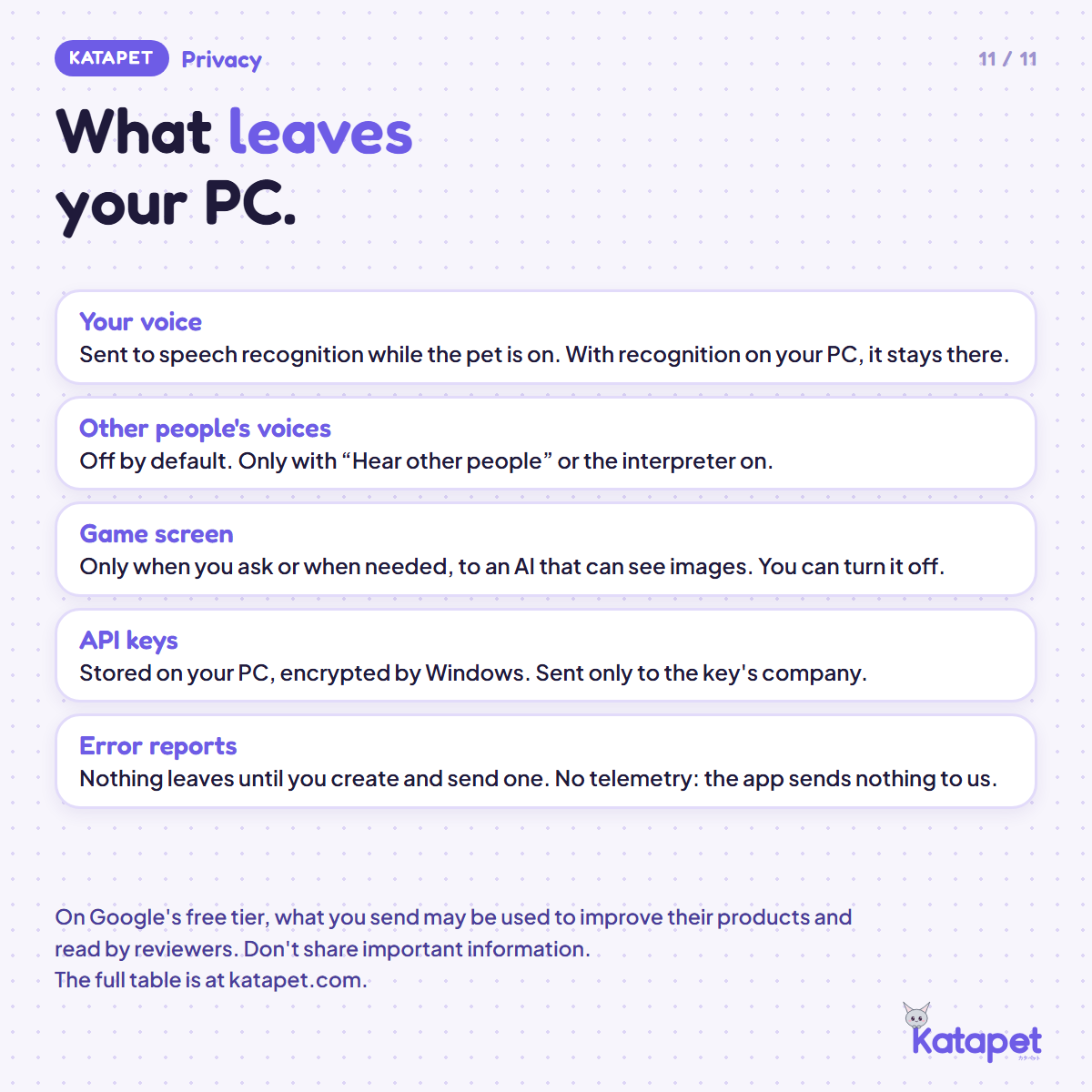
No license key, no DRM and no telemetry. The app sends nothing to us: what you say and your API keys go from your PC straight to the AI companies you choose, or stay on your PC if you run everything there. In short:
- Your voice: with the ear in the cloud, the audio goes to Groq (or to Google) and comes back as text. Groq doesn't train AI with it, but may keep it for up to 30 days, for errors or abuse.
- The conversation: goes to the brain you chose, and isn't saved. What the pet remembers about you stays on your PC, where you can see, correct and delete it.
- The game screen: on Google's free tier, Google may use the pictures to improve its products, and people there may read them. Don't show anything personal.
- Search: goes to DuckDuckGo, or to Google with the Gemini key.
- Error reports only go out if you create and send one, and you see everything first.
Your keys are stored on your PC, encrypted by Windows. The full table is at katapet.com/en, under "What the app hears and what leaves your PC".
AI disclosure
Label: AI-Assisted, with some AI-generated motions.
AI in the app (it's what the app does):
- Speech recognition: turns what you say into text. It's Whisper, in the cloud (Groq) or on your PC, or Google's Gemini if Google is your only key.
- Conversation, translation, memory and search: a language model from an AI provider you choose and sign up for yourself, with your own key (Groq or Google Gemini, free; OpenRouter, optional), or a model on your PC, through Ollama.
- Vision: when it looks, a picture of the VRChat window goes to the AI provider you chose, or stays on your PC.
- Voices: the free voices are AI text-to-speech that runs on your PC (Supertonic, Kokoro, AivisSpeech and VOICEVOX). Online AI voices (Fish Audio, MiniMax) are optional and go on your own account.
- Chatbox reading (off by default) uses Windows' own text recognition, on your PC.
We don't run any AI service: the AI providers are third parties that you choose.
AI in making Katapet:
- AI-assisted: the app, the Unity tools and the guides were written with an AI coding assistant (Claude, by Anthropic), directed and tested by us. The six pets' 3D models and textures were built in Blender by scripts written the same way. No AI image or 3D generator was used for the pets.
- AI-generated: the mini avatar's tricks (hop, flip, play dead and dance) were generated with NVIDIA Kimodo (the Kimodo-SOMA-RP model, under the NVIDIA Open Model License) and adjusted by hand. They aren't motion capture of people.
On this page: the images are in-game renders with text, with no AI-generated pictures. The video is dubbed with AI voices.
Terms
Use the pets on your avatar, in livestreams and in videos, and adjust them for your own use. Don't resell or pass on the files, changed or not, don't leave a public avatar with the pet, and don't use them to train AI. The full terms come in the package (TERMS_EN.txt).
Refunds
Katapet is a digital product, so purchases aren't refundable. But if Katapet doesn't run on your PC and we can't fix it, write to us and we'll refund you.
Support
Discord: discord.gg/e2B2yerVJ4 � Email: [email protected] � X: @katapetvr
If you can, send the report from the app (Help tab > Create report). You see everything before sending, and it never includes your keys or what you talked about.
Katapet has no connection with VRChat Inc. VRChat, Unity and the names of other companies mentioned are trademarks of their owners.