
Produktbeschreibung
Dieses Produkt enthält KI-generierte Inhalte.
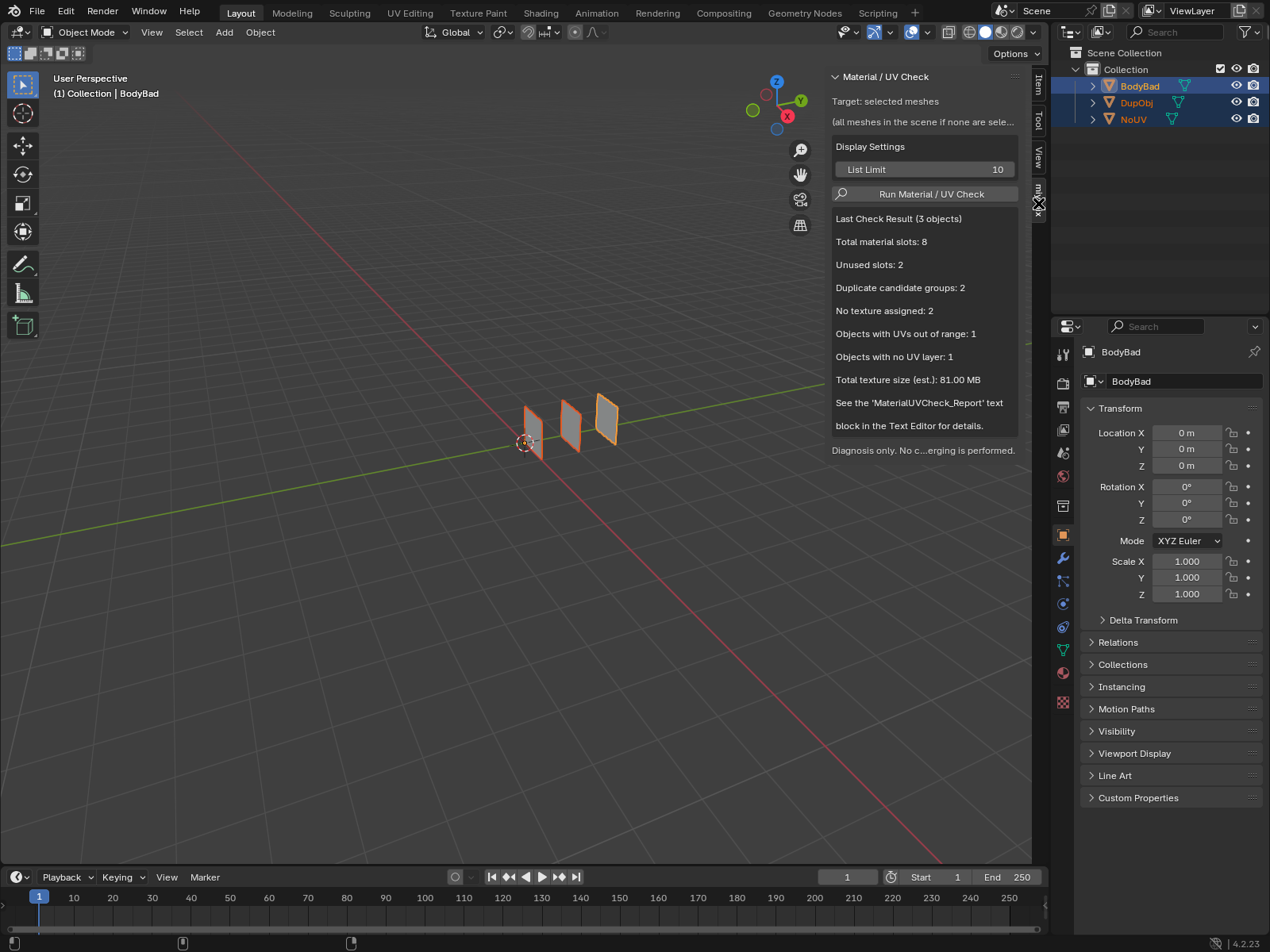
Your avatar is ready to upload. But the materials… how many slots is that? Which texture is eating all the size? And why is that UV hanging outside 0–1? Stop guessing. Material UV Checker diagnoses the materials and UVs of the target meshes and reports "what is heavy, and where" and "where cleanup candidates are", with a full breakdown — BEFORE you upload. Scan. Read the report. See the main cause. Blender 4.2 or 5.3. $9.99. What it checks Texture usage: total VRAM by format, per-texture list (resolution, format, size, usage count and VRAM, with "oversized" flags), and unused textures. Oversized textures count towards your avatar's VRAM use even if they are not used in any material — here is where the bloat comes from. Materials: a full breakdown of the materials of target meshes — slot count, shared / used / unused textures, the textures shared across materials, the top materials by VRAM / face count, and per-material lists sorted by face count, VRAM, and UV coverage (plus a "unused" list for empty materials). UVs: per-mesh UV coverage vs. the 0–1 range, the meshes with UVs extending outside the 0–1 area, the count of UVs outside 0–1, mirror / mirrored UVs, UVs with negative scale, overlapped UVs, and a separate list of "empty UV maps" (no data). Meshes: totals and a ranking of the heaviest meshes — vertices, faces, materials and UVs per mesh. VRAM: the total is checked against VRChat limits (Very Poor: 40 MB, Poor: 40 MB, Medium: 10 MB, Good: 10 MB) and a judgment is shown. Also: a compact report summary, the textures that are used only once, and where you can merge materials and reuse textures. How to use Open the "miyabix" tab of the 3D Viewport sidebar (N key) to run the check. Use the filters to select which objects are included in the check: all objects in the current scene, only selected objects, only objects in a specific collection, or only visible objects. Press "Run Diagnostics" — results appear in seconds (it took 2 seconds on my i7 PC). Filter the results by category with the buttons at the top. Click the name of a texture, material, mesh or UV map to show it in the 3D Viewport (the camera is moved so the target is visible; the target is selected and isolated). For textures: the "Show in outliner" button shows the file in the Outliner. For materials: the "Apply" button applies the selected material to the object (useful if you are trying different materials). Select which categories to display (Texture, Material, UV, Mesh) and which fields to include in the report, and copy the report with "Copy report" to share it with a collaborator. The "Export Report" button exports it as a JSON file (same as "Copy report" — for sharing with collaborators). For each mesh: click the target mesh to open the "Detail" panel below, with UV coverage and texture and material lists. Click a texture name to show it in the Outliner; click a material to apply it. Notes and limitations This tool reports which textures and UVs are suspicious and how much VRAM they consume; the actual optimization of the avatar is up to you. For very large meshes, the calculation may take a while. This tool is for diagnosing the VRAM usage of textures and materials; the polygon count itself is not optimized. (For high-poly meshes, use Decimate etc.) Installation Start Blender 4.2 or 5.3. Install the .py file via Preferences > Add-ons > Install... and select the .py file, then enable the addon by checking its checkbox. A "miyabix" tab is added to the 3D Viewport sidebar (N key). System requirements Blender 4.2 or 5.3, VRChat (for avatars), a PC capable of running Blender (for example, a 16 GB / 4-core environment). Files included material_uv_checker.py — the addon README.txt — full English instructions Refund policy Digital goods cannot be returned once downloaded, so please review the features on this page before purchasing.